
How to authorise Intellitax as your tax agent
Before we can file your tax return or deal with HMRC on your behalf, we need you to authorise us as your agent. It takes around 5 minutes and you only need to do it once.
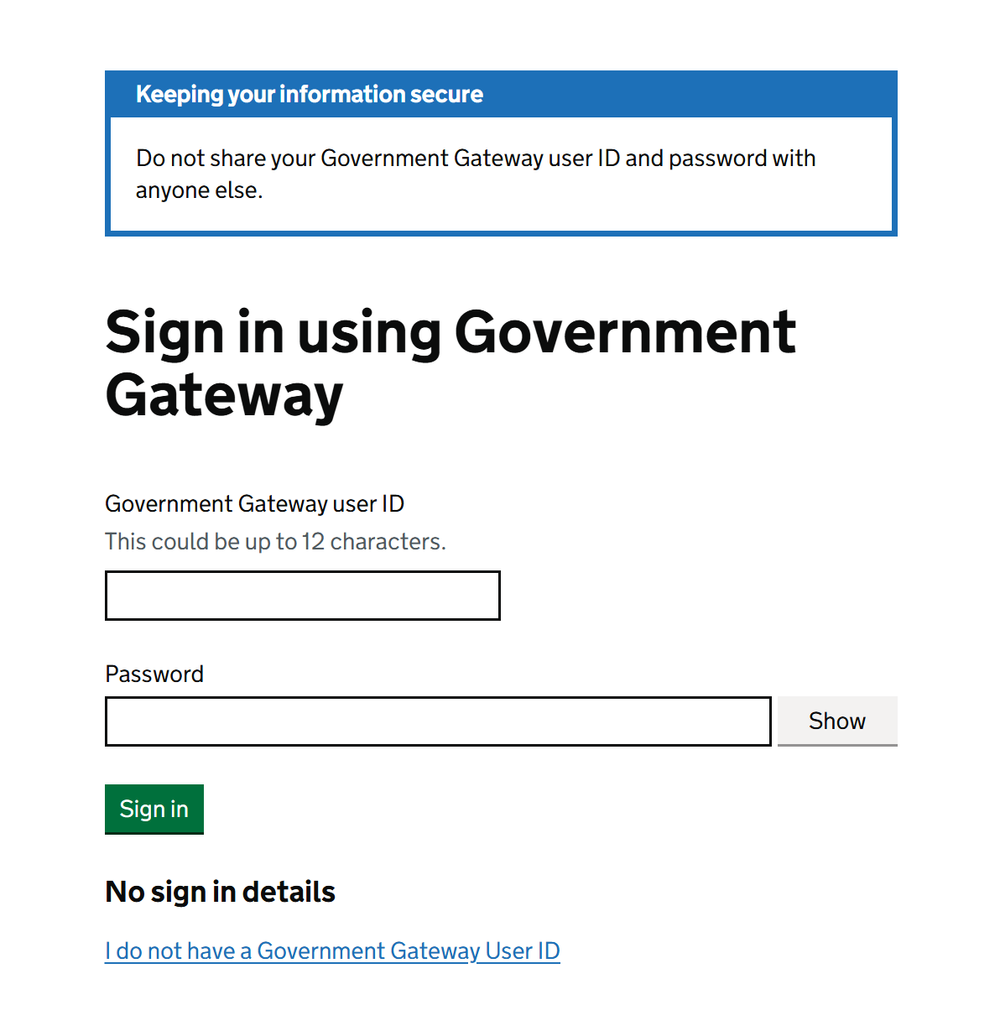
Sign into Your Government Gateway Account
Go to HMRC's sign-in page and enter your Government Gateway user ID and password.
If you do not have a Government Gateway account, click I do not have a Government Gateway User ID and follow the steps to create one. If you need help, contact us and we will handle the authorisation another way.
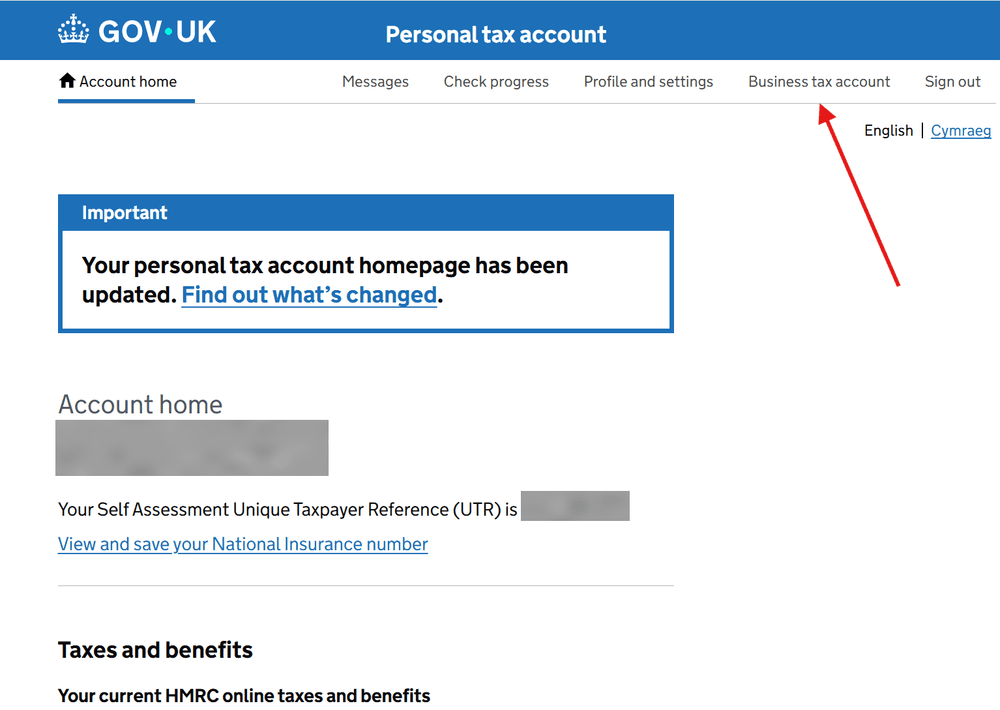
Select 'Business tax account'
Once signed in you will land on your Personal tax account. Click Business tax account in the navigation bar at the top of the page.
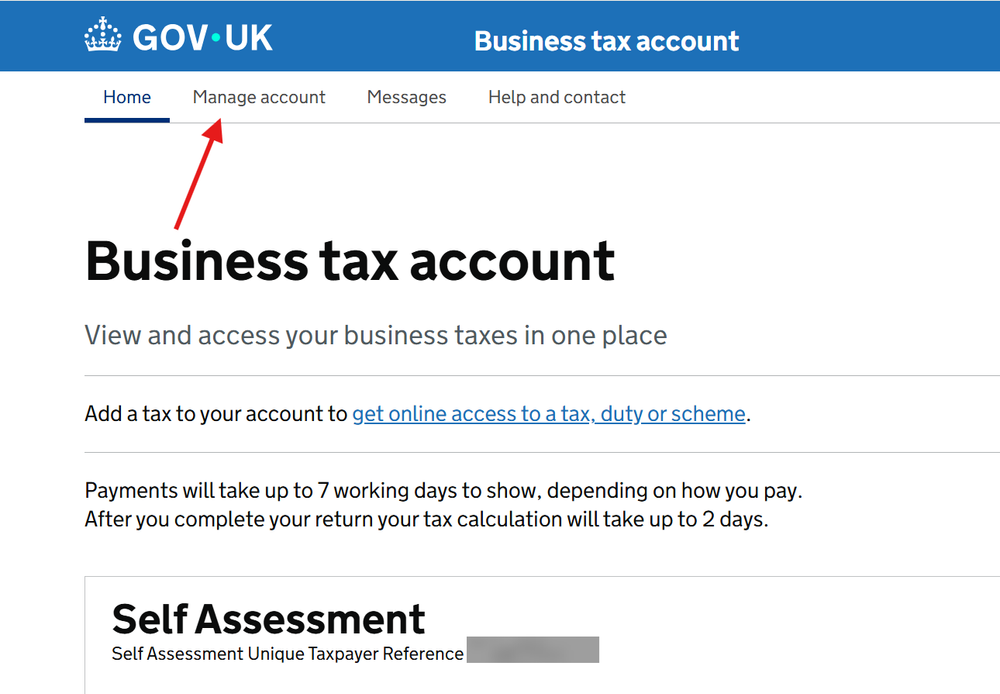
Select 'Manage account'
From the Business tax account home page, click Manage account in the navigation bar at the top.
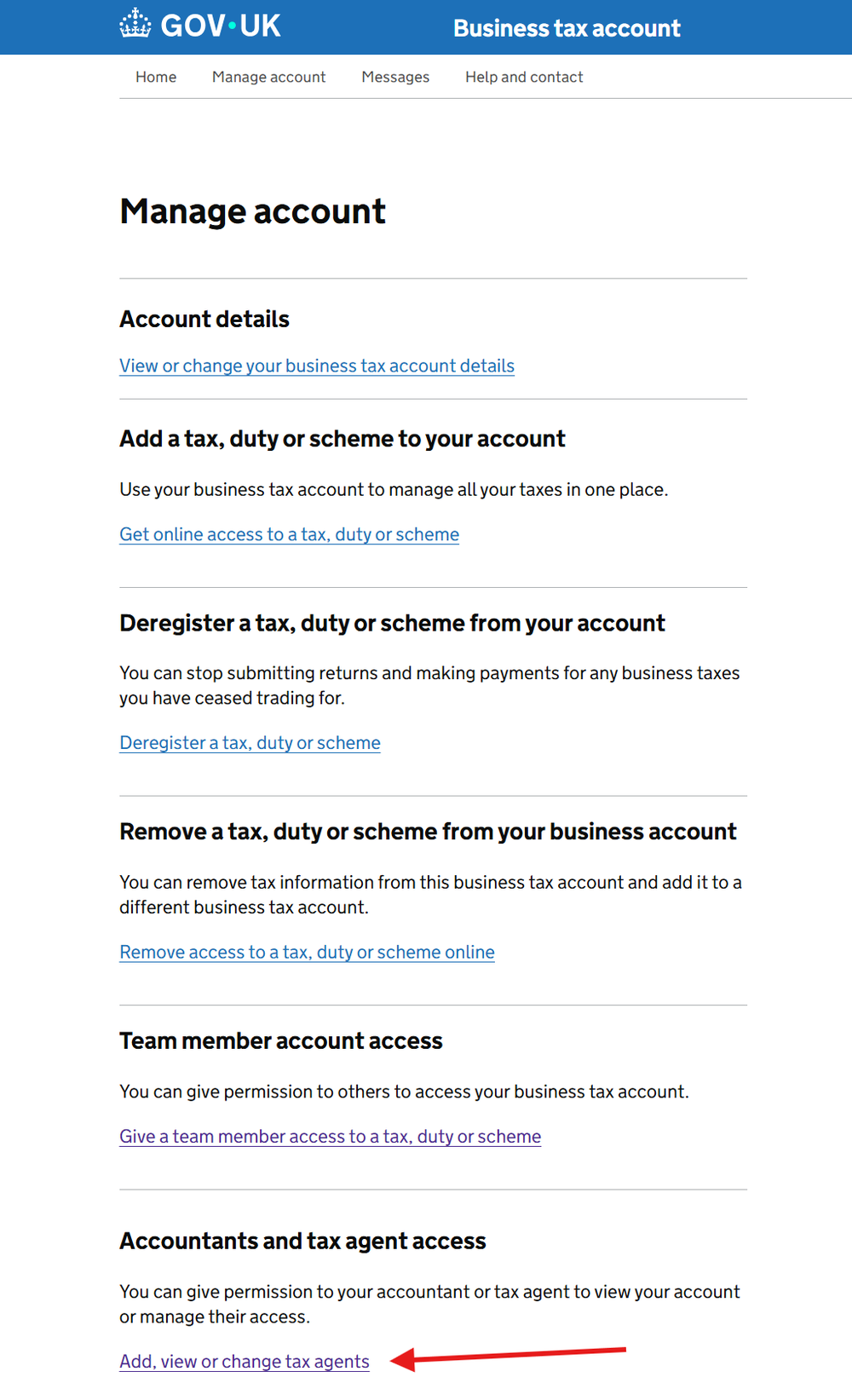
Select 'Add, view or change tax agents'
Scroll down to the Accountants and tax agent access section. Click Add, view or change tax agents.
Authorise an agent
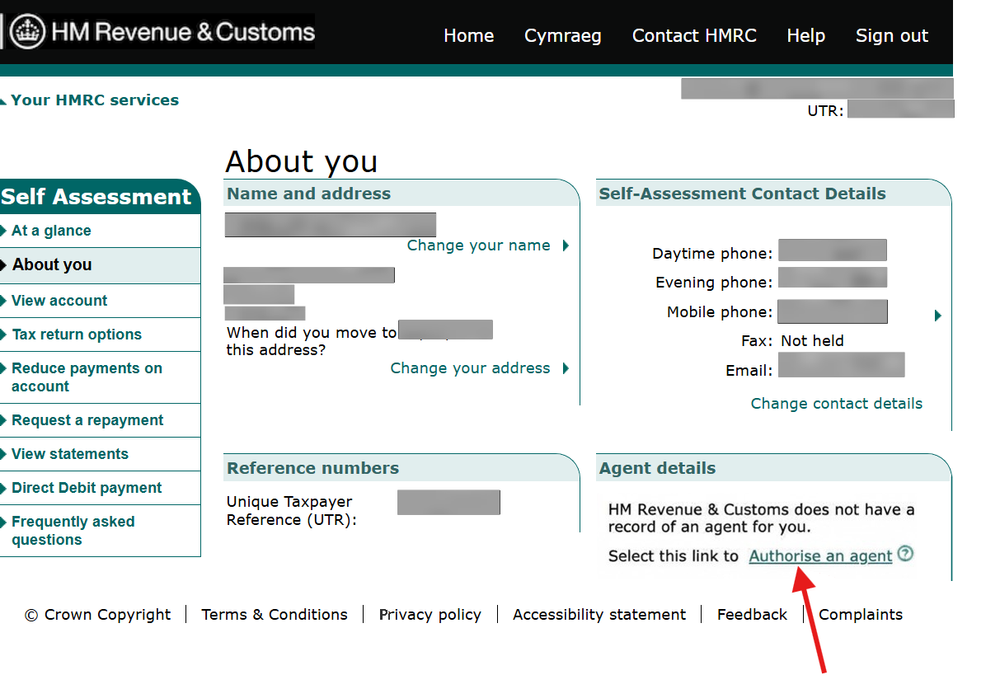
You will then be taken to the Your HMRC services 'About you' page. In the bottom right corner, under Agent details, click Authorise an agent.
Enter the Government Gateway Agent ID
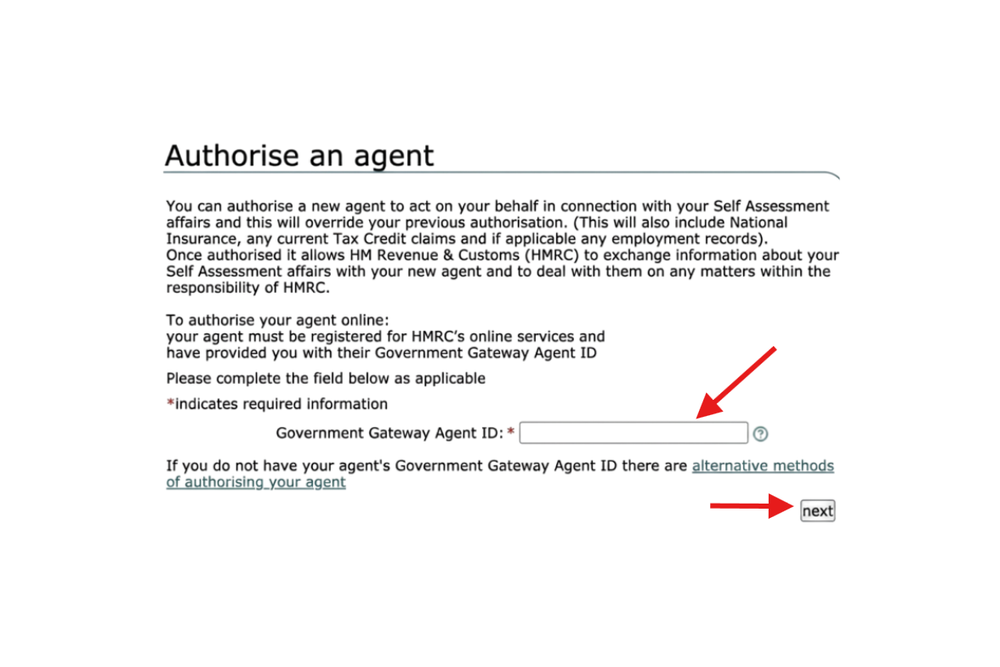
Enter the ID in the field provided and click Next.
The ID consists of 2 sets of 12 characters separated by a dash, like this:
xxxxxxxxxxxx-xxxxxxxxxxxx
We will send your ID in your welcome email. Enter it exactly as shown.
Confirm Agent Details
Check the agent name and address shown are correct. If not, click Back to make changes.
Tick the box to confirm: "I want this agent to act for me in respect of Self Assessment. This authorises HMRC to exchange information about me with my agent and to deal with them on any matters within the responsibility of HMRC in relation to my Self Assessment affairs."
Click Next to complete the authorisation.
Screenshots © Crown Copyright, reproduced under the Open Government Licence v3.0